
 By
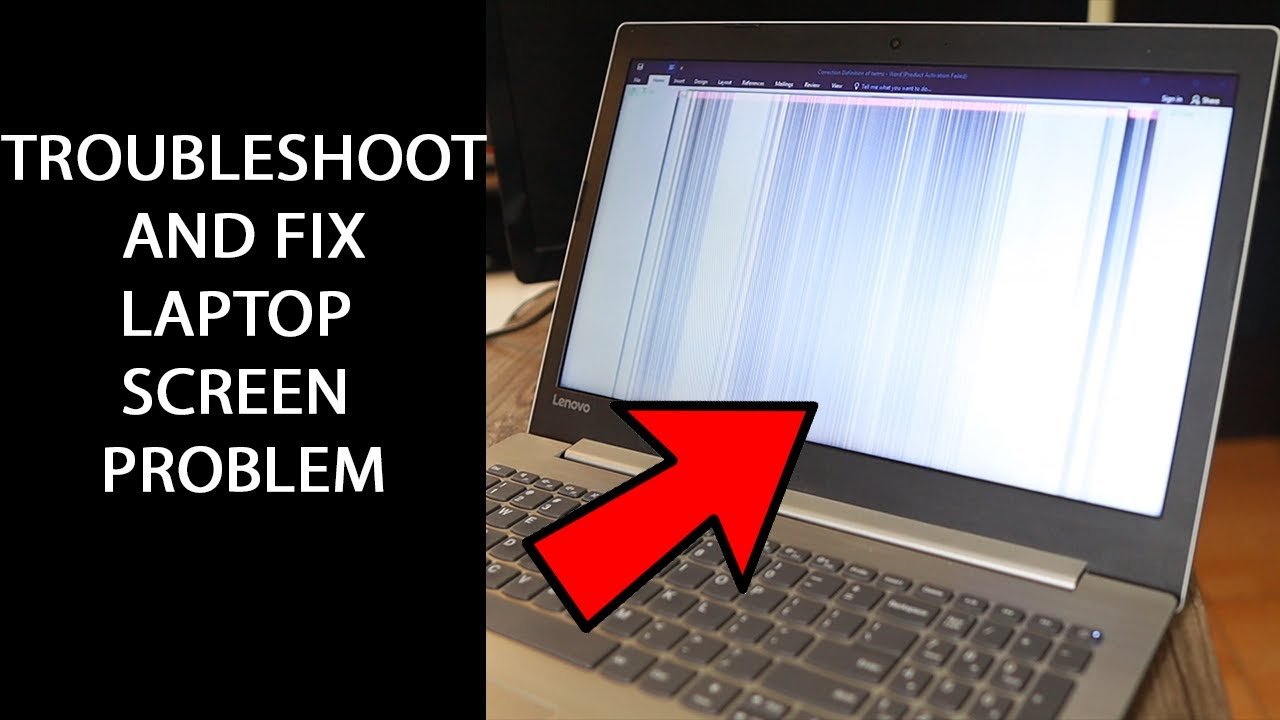
ByLenovo laptop screen glitch can be resolved by troubleshooting or updating display drivers. Lenovo laptops may experience screen glitches, which can be disruptive to work and productivity.
Table of Contents
Fortunately, there are steps you can take to resolve this issue. First, try troubleshooting the problem by checking all cables and connections to ensure they are secure. Additionally, updating your display drivers to the latest version can often fix screen glitches.
If these steps do not work, it may be necessary to contact Lenovo support for further assistance. By addressing the screen glitch promptly, you can ensure smooth and uninterrupted usage of your Lenovo laptop. Keep reading to discover some effective solutions to fix the glitch and get back to using your laptop without any interruptions.
Identify The Cause Of The Screen Glitch
When your Lenovo laptop screen starts to glitch, it can be frustrating and lead to a disruption in your work or entertainment. To identify the cause of the screen glitch, there are a few steps you can take.
First, check for loose connections and cables. Sometimes, a loose connection can cause the screen to glitch. Ensure that all the cables connecting the screen to the laptop are securely plugged in.
Another step is to update or rollback the display drivers. Outdated or incompatible drivers can cause screen glitches. Go to the Lenovo website and download the latest display drivers for your laptop model. If updating the drivers doesn’t solve the issue, try rolling back to a previous version.
Lastly, running hardware diagnostics can help identify any underlying hardware issues. Lenovo laptops usually come with built-in diagnostic tools that can be accessed during the startup process. Running these tests can provide valuable insights into the cause of the screen glitch.

Credit: www.wikihow.com
Resolving Software-Related Screen Glitches
In order to resolve software-related screen glitches on your Lenovo laptop, there are a few steps you can take. Firstly, adjust the screen resolution and refresh rate. This can often fix issues related to screen flickering or distortion. To do this, right-click on the desktop and select the “Display settings” option. From there, you can modify the resolution and refresh rate according to your preferences.
Secondly, disable unnecessary visual effects and overlays. These can sometimes cause conflicts with the display settings and lead to screen glitches. To do this, go to the Control Panel and search for “Performance Options”. From there, you can customize the visual effects and disable any unnecessary overlays.
Read More
Black Line on Laptop Screen Dell: Easy Fix it Now with Simple Steps
In addition, it is important to scan your laptop for malware and viruses. These malicious programs can also result in screen glitches. Make sure to **update your antivirus software** and run a scan to identify and eliminate any potential threats. By following these steps, you should be able to resolve software-related screen glitches on your Lenovo laptop.
Fixing Hardware-Related Screen Glitches
When it comes to fixing hardware-related screen glitches on your Lenovo laptop, it is important to start by checking for physical damage and defects. Inspect the screen for any cracks, dents, or visible abnormalities. If none are found, the next step is to replace or reseat the LCD screen cable. This cable connects the screen to the motherboard and can sometimes get loose or damaged, resulting in screen glitches. Carefully disconnect and reconnect the cable to ensure a secure connection.
If the issue persists, it may be necessary to test and replace faulty hardware components. This can include the graphics card, motherboard, or other internal components that may be causing the screen glitches. Consult a professional technician for further assistance in diagnosing and resolving hardware-related screen glitches on your Lenovo laptop.
Performing A Factory Reset
Performing a factory reset is a common solution to fix the Lenovo laptop screen glitch. Before proceeding with the reset, it is important to backup important data to prevent any loss. Once the backup is complete, you can reset the laptop to its original settings. This will remove any software glitches or conflicts that may be causing the screen issue. After the reset, it is necessary to reinstall necessary applications and drivers to ensure the laptop functions properly. This process will restore the laptop to its original state and resolve any screen glitches that were present. Remember to follow the instructions provided by Lenovo to perform a safe factory reset and make sure to have a stable power source during the process.
Seeking Professional Assistance
|
Seeking Professional Assistance: If you are experiencing a Lenovo laptop screen glitch, it is essential to seek professional help to address the issue effectively. One option is to contact Lenovo technical support. They have a team of experts who can provide guidance and troubleshooting advice specific to your laptop model. Consult a local computer repair service: If you prefer a more hands-on approach, you can also consult a local computer repair service. These professionals have experience with various laptop issues and can diagnose and fix the screen glitch for you. Submitting the laptop for warranty repair or replacement: If your Lenovo laptop is still under warranty, you may want to consider submitting it for warranty repair or replacement. Lenovo’s warranty policies typically cover screen-related glitches, allowing you to get it fixed without any additional cost. |
Regularly Update Drivers And Software
Regularly updating drivers and software is crucial to prevent screen glitches on your Lenovo laptop. To ensure a smooth and uninterrupted computing experience, enable automatic updates for your system. This will allow you to download and install the latest drivers and updates without any hassle. By keeping your drivers up to date, you can address any compatibility issues and optimize your laptop’s performance.
Take Care Of Your Laptop’S Screen
Lenovo Laptop Screen Glitch
Take care of your laptop’s screen to prevent glitches and ensure its longevity. Regularly clean the screen to remove dirt, fingerprints, and smudges. Use a microfiber cloth and mild cleaning solution specifically designed for screens. Avoid excessive pressure or rough handling that can cause damage. Gentle and controlled movements are key.
Consider using screen protectors or laptop sleeves to provide an additional layer of protection against scratches and impacts. Screen protectors act as a barrier, safeguarding the screen from potential damage. Laptop sleeves provide overall protection when transporting your device, reducing the risk of accidental screen damage.
Maintain Optimal Environmental Conditions
Lenovo laptops are prone to screen glitches, but there are steps you can take to prevent them. One important factor is maintaining optimal environmental conditions. Keep your laptop in a cool and dry area, away from direct sunlight or extreme temperatures. Exposing it to such conditions can cause overheating or damage the screen. Remember, heat can affect the performance and lifespan of your laptop. To ensure optimal conditions, consider using a laptop cooling pad or stand to dissipate heat and improve airflow. Additionally, regularly cleaning the vents and fans can help prevent overheating. By taking these simple precautions, you can reduce the risk of a screen glitch and prolong the life of your Lenovo laptop.
Frequently Asked Questions On Lenovo Laptop Screen Glitch
Why Is My Lenovo Laptop Screen Glitching?
There are various reasons why your Lenovo laptop screen may be glitching, such as outdated graphics drivers or a faulty display cable.
How Do I Fix My Lenovo Screen Glitch?
To fix your Lenovo screen glitch, try these steps: 1. Restart your Lenovo device to see if that resolves the issue. 2. Update your graphics driver by going to the Lenovo website and downloading the latest driver for your specific model.
3. Adjust your display settings by right-clicking on the desktop and selecting “Display settings. ” Try changing the resolution or refresh rate. 4. If the glitch persists, connect your Lenovo device to an external monitor to check if the problem lies with the screen itself.
If so, contact Lenovo support for further assistance.
Why Is My Laptop Screen Suddenly Glitching?
Your laptop screen may start glitching suddenly due to software issues or hardware malfunctions.
Why Is My Lenovo Laptop Screen Black And Flickering?
Your Lenovo laptop screen may be black and flickering due to a software issue or a faulty display cable.
Conclusion
The Lenovo laptop screen glitch is a common issue that many users face. From flickering screens to display abnormalities, these glitches can be frustrating and interfere with productivity. Fortunately, there are several steps you can take to resolve this problem.
Starting with basic troubleshooting such as updating drivers and checking for software conflicts, you can often find a solution. If these steps don’t work, seeking professional help or contacting Lenovo support can provide further assistance. Remember to regularly clean your laptop screen and utilize protective measures to prevent future glitches.
By following these tips and staying proactive, you can maintain a smooth and glitch-free experience with your Lenovo laptop. Happy computing!



I learned something new today. Appreciate your work!
Thanks for sharing. I read many of your blog posts, cool, your blog is very good.
AquaSculpt is a high-quality metabolic support supplement created to help the body utilize fat more efficiently while maintaining steady, reliable energy levels throughout the day.
NativeGut is a precision-crafted nutritional blend designed to nurture your dog’s digestive tract.
GL Pro is a natural dietary supplement formulated to help maintain steady, healthy blood sugar levels while easing persistent sugar cravings.
MounjaBoost is a next-generation, plant-based supplement created to support metabolic activity, encourage natural fat utilization
NativeGut is a precision-crafted nutritional blend designed to nurture your dog’s digestive tract.
ViriFlow is a dietary supplement formulated to help maintain prostate, bladder, and male reproductive health. Its blend of plant-based ingredients is designed to support urinary comfort and overall wellness as men age.
Visium Pro is an advanced vision support formula created to help maintain eye health, sharpen visual performance, and provide daily support against modern challenges such as screen exposure and visual fatigue.
Backbiome is a naturally crafted, research-backed daily supplement formulated to gently relieve back tension and soothe sciatic discomfort.
Backbiome is a naturally crafted, research-backed daily supplement formulated to gently relieve back tension and soothe sciatic discomfort.
Thank you for your sharing. I am worried that I lack creative ideas. It is your article that makes me full of hope. Thank you. But, I have a question, can you help me?